
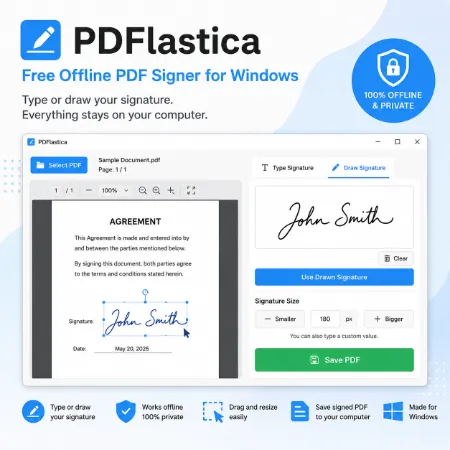
PDFlastica is a free PDF form filler and signature tool that lets you add text and hand-drawn signatures without uploading your documents to the internet. Everything is processed locally in your browser, helping keep your files private.
The application is designed to make filling and signing PDF forms simple. Open a PDF, add text such as names, dates, addresses, or other form information, draw your signature once, place it multiple times anywhere in the document, and save the completed PDF. The clean interface makes it easy for anyone to use.
How to Use PDFlastica
1. Open Your PDF
Click Try PDFlastica to open the online version.
Click Select PDF and choose the PDF you want to fill.
The PDF preview will appear on the left.
2. Add Text
Enter your text in the Text section.
Click Add Text.
Drag the text to the desired position.
Resize it using the Smaller and Bigger buttons if needed.
Repeat to add as many text items as required.
3. Draw a Signature
Draw your signature using your mouse or touchpad in the Draw Signature area.
Click Add Signature.
Drag the signature to the desired position.
Resize it as needed.
Click Add Signature again whenever you want to place another copy of the same signature.
4. Edit Items
Select any text or signature.
Move it by dragging.
Resize it using the Smaller and Bigger buttons.
Click Delete to remove the selected item.
5. Save the PDF
When you’re satisfied with the placement, click Save PDF.
The completed PDF will be downloaded to your computer.
Why Use PDFlastica?
- Free PDF form filler and signature tool
- Add unlimited single-line text anywhere on a PDF
- Draw one signature and place it multiple times
- Move, resize, and delete text and signatures
- Works completely in your browser for better privacy
- No account or file uploads required
- Simple, clean interface
- Ideal for forms, contracts, applications, and other PDF documents
Conclusion
PDFlastica is a lightweight PDF form filler and signature tool designed for simplicity and privacy. Add text, place handwritten signatures wherever you need them, and save your completed PDF in just a few clicks. Everything runs locally in your browser, so your documents stay on your own comp
