AVIF images can provide excellent image quality with small file sizes, but not every website, app, or workflow supports AVIF equally well.
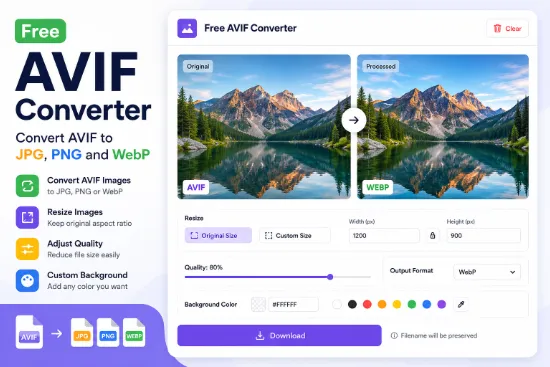
Our Free AVIF Converter & Resizer lets you convert between AVIF, JPG, PNG, and WebP directly in your browser.
You can convert JPG, PNG, and WebP images to AVIF, or convert AVIF images to JPG, PNG, and WebP. You can also resize images, adjust output quality, and choose a background color when needed.
No complicated settings are required.
What You Can Do
With the Free AVIF Converter & Resizer, you can:
- Convert JPG to AVIF
- Convert PNG to AVIF
- Convert WebP to AVIF
- Convert AVIF to JPG
- Convert AVIF to PNG
- Convert AVIF to WebP
- Convert between JPG, PNG, and WebP
- Keep the image at its original dimensions
- Resize using common preset sizes
- Enter a custom image size
- Maintain the original aspect ratio with custom resizing
- Choose Fit or Fill when resizing
- Adjust output quality
- Add a background color using a color picker or HEX value
- Preview the original and processed images side by side
- Keep the original filename when downloading
How to Use the AVIF Converter
- Click the Original preview box and select an AVIF, JPG, PNG, or WebP image.
- The app automatically creates a processed preview.
- Choose Original Size if you want to keep the original dimensions.
- To resize the image, choose one of the preset sizes or select Custom Size.
- Choose Fit or Fill when using a resized canvas.
- Adjust the Quality slider if needed.
- Choose a background color when required.
- Select AVIF, WebP, JPG, or PNG as the output format.
- Click Download to save the processed image.
There is no separate Process button. Changes are processed automatically.
Convert Images to AVIF
The converter now supports creating AVIF images directly from other common image formats.
You can convert:
JPG → AVIF
PNG → AVIF
WebP → AVIF
This is useful when you want to take advantage of AVIF’s efficient compression for websites, blogs, and other digital content.
Convert AVIF to Other Formats
You can also convert AVIF images back to more widely used formats:
AVIF → JPG
AVIF → PNG
AVIF → WebP
This can be useful when a website, application, or older workflow does not support AVIF.
Resize with Preset or Custom Sizes
You have two simple ways to resize an image.
Choose one of the built-in preset sizes for a quick resize, or select Custom Size and enter the dimensions you need.
When using custom dimensions, the converter can maintain the original aspect ratio to help prevent stretching or distortion.
You can also choose between Fit and Fill when resizing.
Fit keeps the entire image visible inside the selected dimensions. If the aspect ratios are different, the remaining area uses your selected background color.
Fill fills the entire selected area and may crop part of the image.
Reduce File Size
The Quality control lets you balance image quality and file size for supported formats.
A lower quality setting generally produces a smaller file, while a higher setting preserves more image detail.
This can be useful when preparing images for websites, blogs, email, or other situations where smaller files are preferred.
Background Color and Transparency
The Background Color and HEX controls let you choose the color used for empty or transparent areas.
This is especially useful when converting an image with transparency to JPG because JPEG does not support transparency.
Background color is also useful with Fit mode when the original image and selected output dimensions have different aspect ratios.
What Does Clear Do?
The Clear button removes the processed result while keeping the original image loaded.
You can then change a processing setting to generate a new result. If needed, you can also select the original image again to start fresh.
Original and Processed Preview
The Original and Processed previews stay side by side, making it easy to compare the source image with the converted result.
On mobile, the preview area remains visible while you move through the controls, making it easier to see the effect of your changes.
Which Format Should You Choose?
AVIF is a good choice when you want modern image compression and smaller file sizes while maintaining good visual quality.
JPG works well for photographs and offers very broad compatibility.
PNG is useful when you need lossless output or transparency.
WebP combines good image quality with efficient file sizes and is widely used on modern websites.
Simple Image Conversion
The Free AVIF Converter & Resizer keeps the workflow simple:
Add an image → choose size and format → download the result.
Whether you need to convert to AVIF, convert from AVIF, resize an image, or change between JPG, PNG, and WebP, you can do it from the same simple interface.