
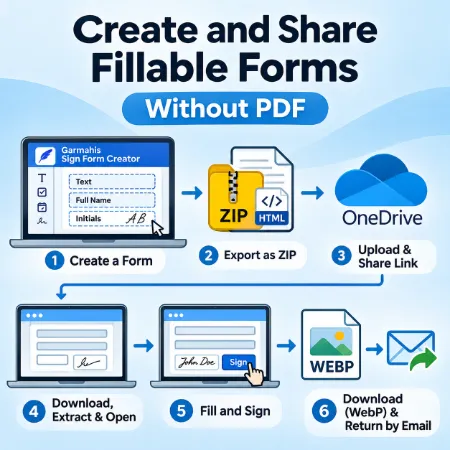
Creating and sharing fillable forms does not always require PDF software, expensive subscriptions or dedicated online signing services. Garmahis Sign Form Creator offers an alternative approach using interactive HTML technology, local browser processing and convenient file sharing.
The software allows users to design documents, add electronic signature fields and distribute forms through familiar file-sharing services such as Microsoft OneDrive.
1. Create Your Form
Open Garmahis Sign Form Creator and start designing your document. You can add text, logos, images, text fields, checkboxes, dates, full-name signatures and initials.
Here are some important operating instructions:
- Double-click any form item to insert it into the document.
- Click and drag an inserted item to position it within the form.
- Select an item to adjust its size and available formatting properties.
- To paste copied text from Word documents, emails or other applications, select the appropriate text area and press Ctrl + V. The right-click Paste option is not supported.
Save your project if you want to edit or reuse the form later.
2. Export Your Form as a ZIP File
After completing your design, export the form as a ZIP file containing the interactive HTML document.
HTML technology allows recipients to enter information and add electronic signatures directly in their browsers without installing Garmahis Sign Form Creator.
We recommend sharing the ZIP file through a trusted file-sharing service instead of attaching raw HTML files directly to emails.
3. Upload and Share Through OneDrive
Microsoft OneDrive provides a convenient way to distribute fillable forms without setting up a website or configuring a web hosting service.
Follow these simple steps:
- Upload the exported ZIP file to OneDrive.
- Select the appropriate sharing permissions.
- Make sure the recipient is allowed to download the file.
- Copy the sharing link.
- Send the link to the recipient by email.
Depending on the sharing permissions, recipients may be able to download the file without signing into a Microsoft account.
OneDrive is used only to distribute the original form, not to fill in or sign the document.
4. Download and Open the Form Locally
When the recipient receives the email, they should:
- Open the OneDrive sharing link.
- Download the ZIP file.
- Right-click the downloaded ZIP file and select Extract All on Windows.
- Open the extracted HTML file in a web browser.
Downloading and extracting the ZIP file is an essential step. Opening an HTML document directly inside the OneDrive interface may prevent its interactive features from working correctly.
By opening the extracted HTML file locally, the recipient leaves the OneDrive interface and can use the form directly in their browser.
5. Fill In and Sign the Form
The recipient can enter the required information, select checkboxes, complete date fields and add electronic signatures.
Click Sign Here to open the signature box. The recipient can draw or type a signature using the available signing options.
- Sign: Apply the signature to the selected signature field.
- Sign All: Apply the signature to applicable signature fields.
- Clear: Clear the signature drawing area.
- Close: Close the signature box.
No PDF reader, additional signing software or dedicated online signing account is required.
6. Download and Return the Completed Form
After completing and signing the document, the recipient can download the completed form in WebP image format.
WebP offers good visual quality with relatively small file sizes. It preserves the visible content and signatures in an image format that is convenient to view, store and share.
The recipient can then attach the completed WebP file to an email and return it to the original sender.
There is no need to return an interactive HTML file or upload the completed document to OneDrive.
7. Email Security and Spam Filtering
The exported ZIP file contains an interactive HTML document that uses JavaScript to provide form-filling and signing functionality.
Email providers and security systems may flag raw HTML files, ZIP archives containing HTML, or related download links as potentially suspicious. This is a normal security precaution and does not necessarily mean the document is malicious.
During our testing, the form-sharing and signing workflow worked successfully, although Gmail sometimes classified form-sharing emails as spam.
If you are expecting a form but cannot find the email, check your Spam or Junk folder. Confirm the message with the sender before downloading the file.
Always open files from trusted and verified sources, and do not ignore browser or antivirus security warnings.
8. Privacy and User-Controlled File Sharing
Garmahis Sign Form Creator is designed around a local form creation and signing workflow rather than a dedicated online signing platform.
The sender controls where the original form is stored, who can download it and how the completed document is returned.
Key advantages of this approach include:
- Local form creation.
- Local browser-based form filling and signing.
- No dedicated online signing server required.
- No complicated web hosting configuration.
- No need to exchange raw HTML email attachments.
- User-controlled file-sharing permissions.
- Compact WebP output for completed documents.
For confidential documents, use appropriate file-sharing permissions and a suitable method for returning sensitive information.
The software provides simple electronic signatures, not certificate-based digital signatures, identity verification or tamper-proof document protection.
Conclusion
Garmahis Sign Form Creator provides a practical way to create, distribute and sign fillable forms without relying on traditional PDF signing software.
The recommended workflow is simple:
Create → Export ZIP → Upload to OneDrive → Share Link → Download and Extract → Fill and Sign → Download WebP → Return by Email
This approach avoids complicated web hosting configurations, reduces the need to exchange raw HTML attachments and gives users greater control over their form-sharing process.
