
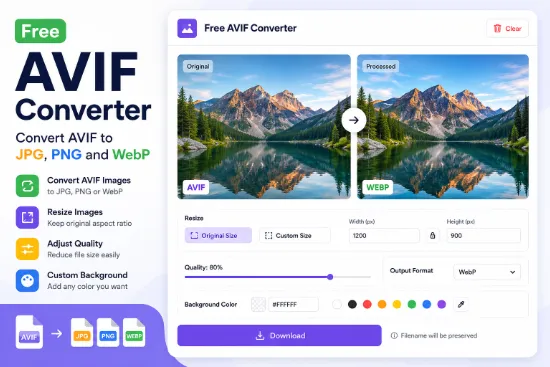
The Free AVIF Converter & Resizer is a simple browser-based tool for Windows users. It supports converting images between AVIF, JPG, PNG, and WebP in both directions.
You can also resize images, adjust quality, and process up to five images at once. No software installation or registration is required.
Main Features
- Supports AVIF, JPG, PNG, and WebP conversion.
- Converts images between all four supported formats.
- Processes up to 5 images at once.
- Allows individual width and height settings for each image.
- Provides Fit and Fill resizing options.
- Includes adjustable output quality.
- Supports background color and HEX selection.
- Displays original and processed previews side by side.
- Allows individual files to be deleted from the list.
- Downloads multiple processed images as a ZIP file.
How to Use
- Click the Original preview box to add images, or drag and drop your files.
- Select an image from the file list.
- The Processed Size section automatically displays its dimensions.
- Change the width and height if needed.
- Choose Fit or Fill, and adjust the quality or background color.
- Select your preferred output format.
- Click Download to save the result.
There is no separate Process button. The app automatically updates the processed image whenever you change a setting.
Batch Processing
The Windows version supports up to five images in one batch.
Each image remembers its own processed dimensions, allowing you to resize different images independently.
You can select any image from the file list to view or modify it. If you add the wrong image, simply click its red Delete (×) button.
When downloading, a single image is saved directly, while multiple images are packaged into one ZIP file.
The Clear button removes all loaded images and resets the settings.
Original and Processed Preview
Two preview boxes let you compare the original image with the converted result.
Both display image dimensions and file sizes, making it easy to check the output before downloading.
Simple Image Conversion
Whether you need to change an image format, reduce its file size, or resize several images, this free Windows tool keeps everything in one place.
Add images → adjust size → choose format → download.
All image processing takes place locally in your browser.
