
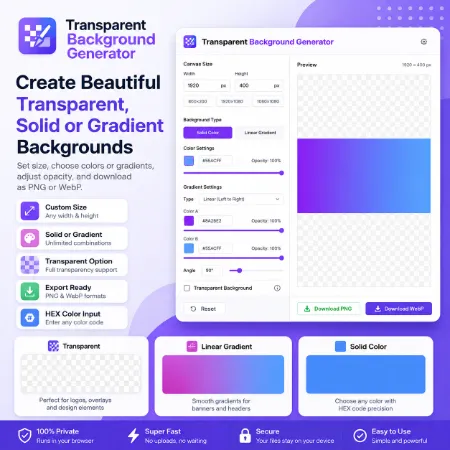
Create transparent, solid color, or gradient backgrounds directly in your browser. Everything is processed locally on your device, so your images are never uploaded to a server. This makes the tool fast, private, and ideal for creating website headers, hero sections, banners, overlays, social media graphics, and UI backgrounds.
1. Set the Canvas Size
Enter the width and height for your image.
Example:
- Width: 1920
- Height: 400
The downloaded image will match the dimensions you enter.
2. Transparent Background
Use the Transparent Background option when you want a fully transparent canvas.
- Enable it to create a transparent background.
- Disable it to create a solid or gradient background.
3. Choose a Background Style
Select one of the available background types:
- Solid
- Linear Gradient
4. Solid Color Background
When Solid is selected:
- Choose a color using the color picker.
- Or enter a HEX color code directly (for example, #55ACFF).
- Adjust the opacity from 0% to 100%.
An opacity of 100% creates a fully opaque background, while lower values create semi-transparent effects.
5. Linear Gradient Background
When Linear Gradient is selected:
- Choose Color A.
- Choose Color B.
- You can also enter HEX color codes for both colors.
- Adjust the opacity of each color.
- Set the gradient angle to achieve the look you want.
6. Create a Transparent PNG
To create a blank transparent image:
- Enable Transparent Background.
- Leave the background transparent.
- Download the image as PNG.
Transparent PNG files are useful for logos, overlays, icons, and design elements.
7. Create a Semi-Transparent Overlay
To make a colored overlay:
- Enable Transparent Background.
- Select a color or enter a HEX code.
- Set the opacity between 10% and 70%.
- Download the image as PNG.
This is useful for hero sections, banners, and text overlays.
8. Create a Solid Background
For a regular background:
- Disable Transparent Background, or
- Set the opacity to 100%.
Choose any color you like, including custom HEX values.
9. Download Your Image
Choose one of the supported formats:
- PNG — supports transparency.
- WebP — provides smaller file sizes for web use.
10. Reset Settings
Click Reset to restore the default settings and quickly start a new background.
Why Use This Tool?
- Everything runs entirely in your browser.
- No image uploads or accounts required.
- Your files stay on your device for better privacy.
- Fast and easy to use.
- Supports transparent, solid color, and gradient backgrounds.
- Custom HEX color code input for precise color selection.
- Export as PNG or WebP.
Try Background Generator Windows
Download Background Generator offline
Try Background Generator mobile
